
How to use Zbounety
A quick walkthrough — from your first scan to hands-free Auto Save.
Zbounety saves the customer numbers already sitting in your WhatsApp, calls and texts. Here's the complete walkthrough — from your first scan, to hands-free Auto Save, to exporting and tracking everything.
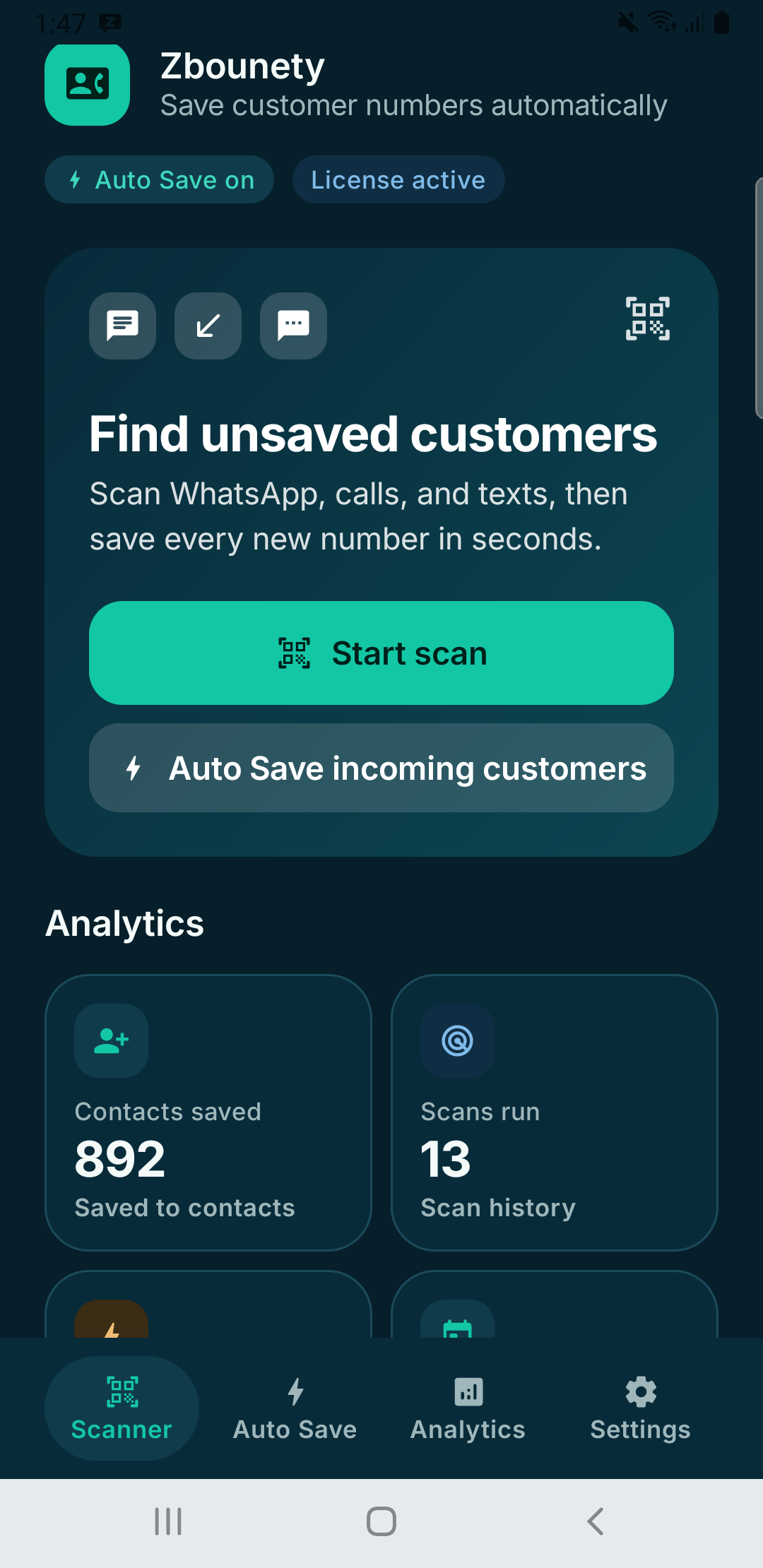
1. Open the dashboard
After activating your license, the home screen shows your live totals — contacts saved, scans run, and how many were saved automatically. Everything starts here.
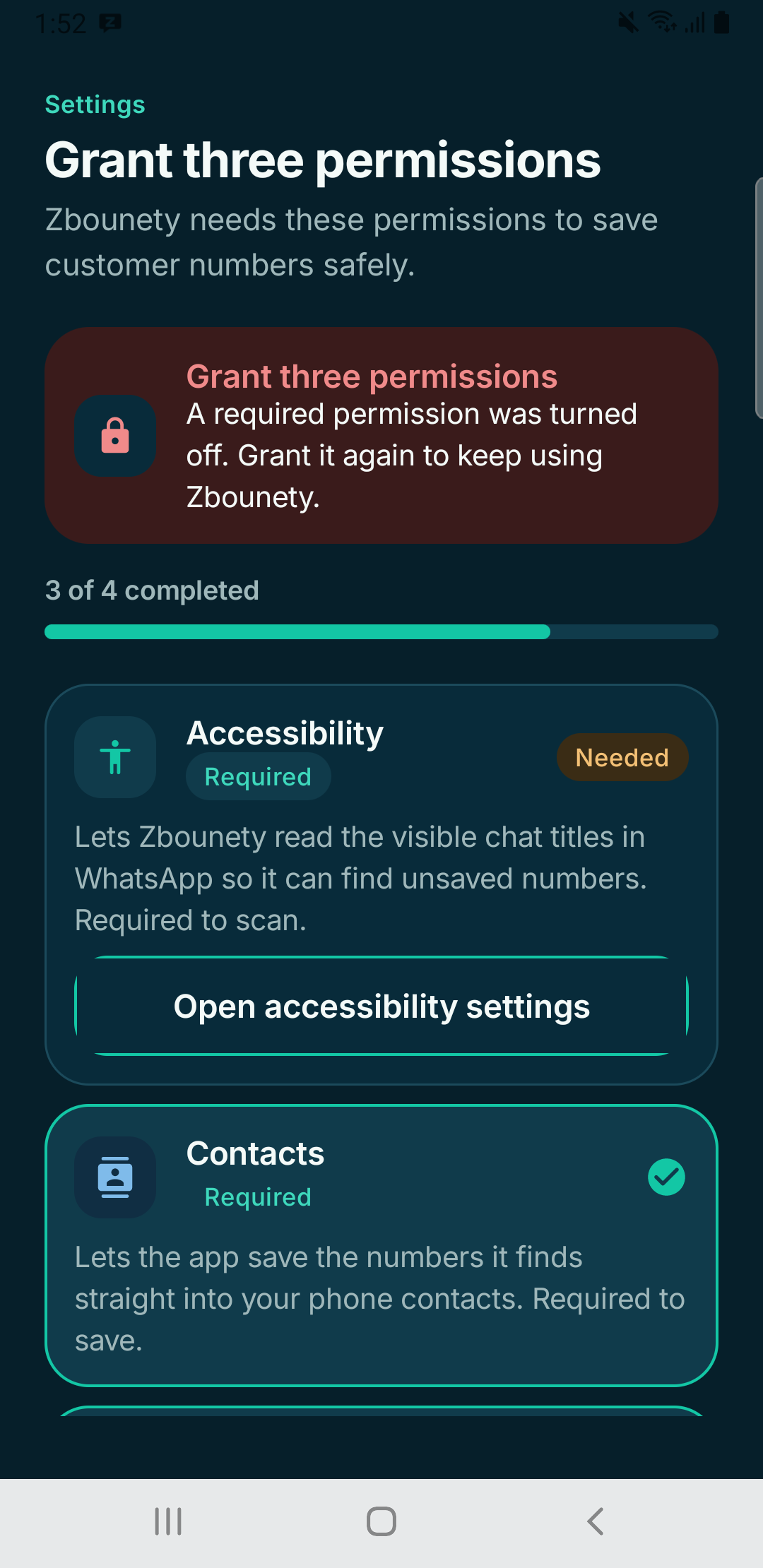
2. Grant the three permissions
Zbounety needs Accessibility (to read the visible chat titles), Contacts (to save numbers), and Notifications (to show progress). Grant them once — they're what make hands-free saving possible. The app guides you to each one.
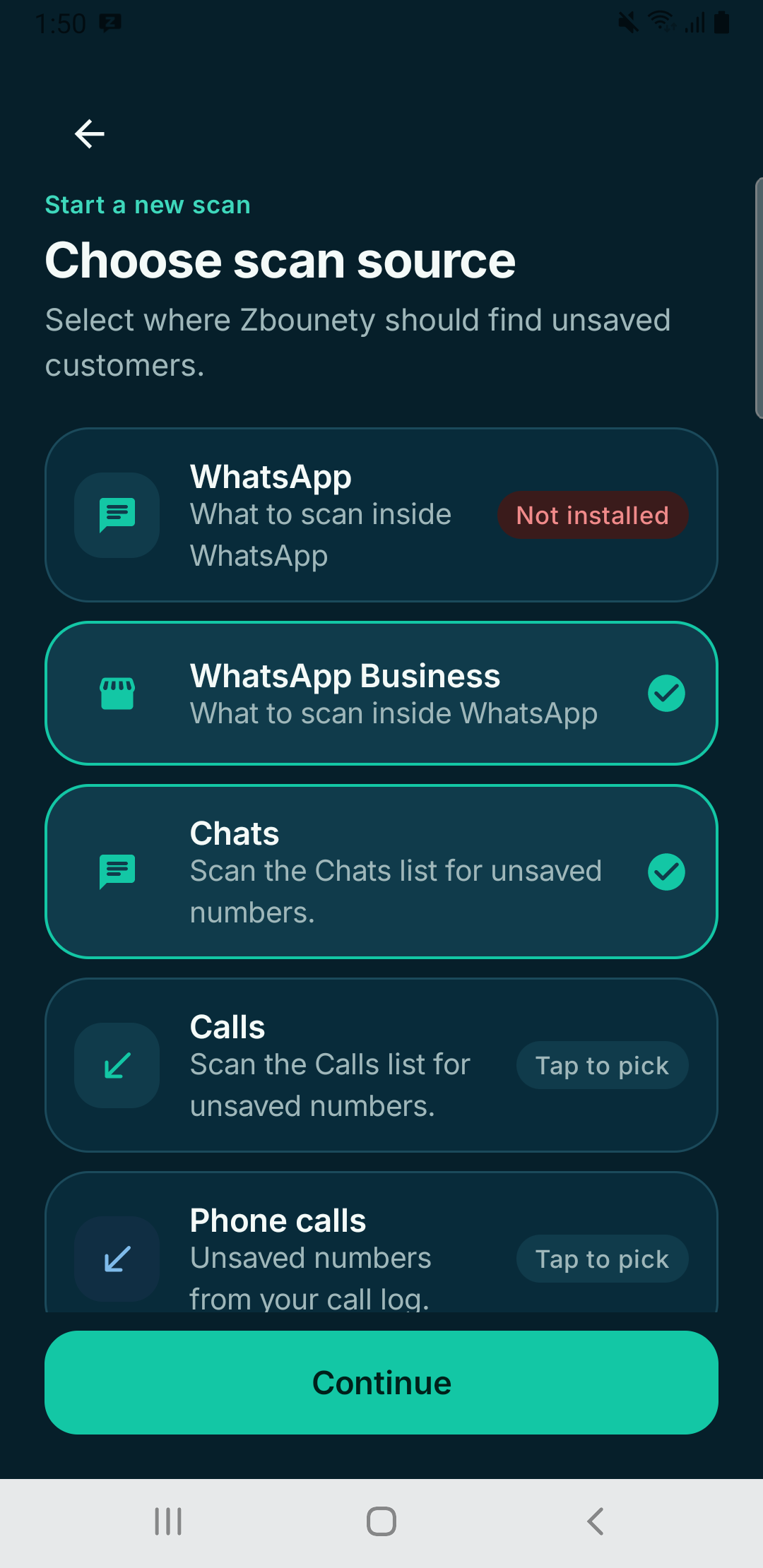
3. Choose your scan source
Tap “Start scan” and pick where to look: WhatsApp, WhatsApp Business, your phone call log, or your SMS inbox. For WhatsApp you can scan the Chats list or the Calls list.
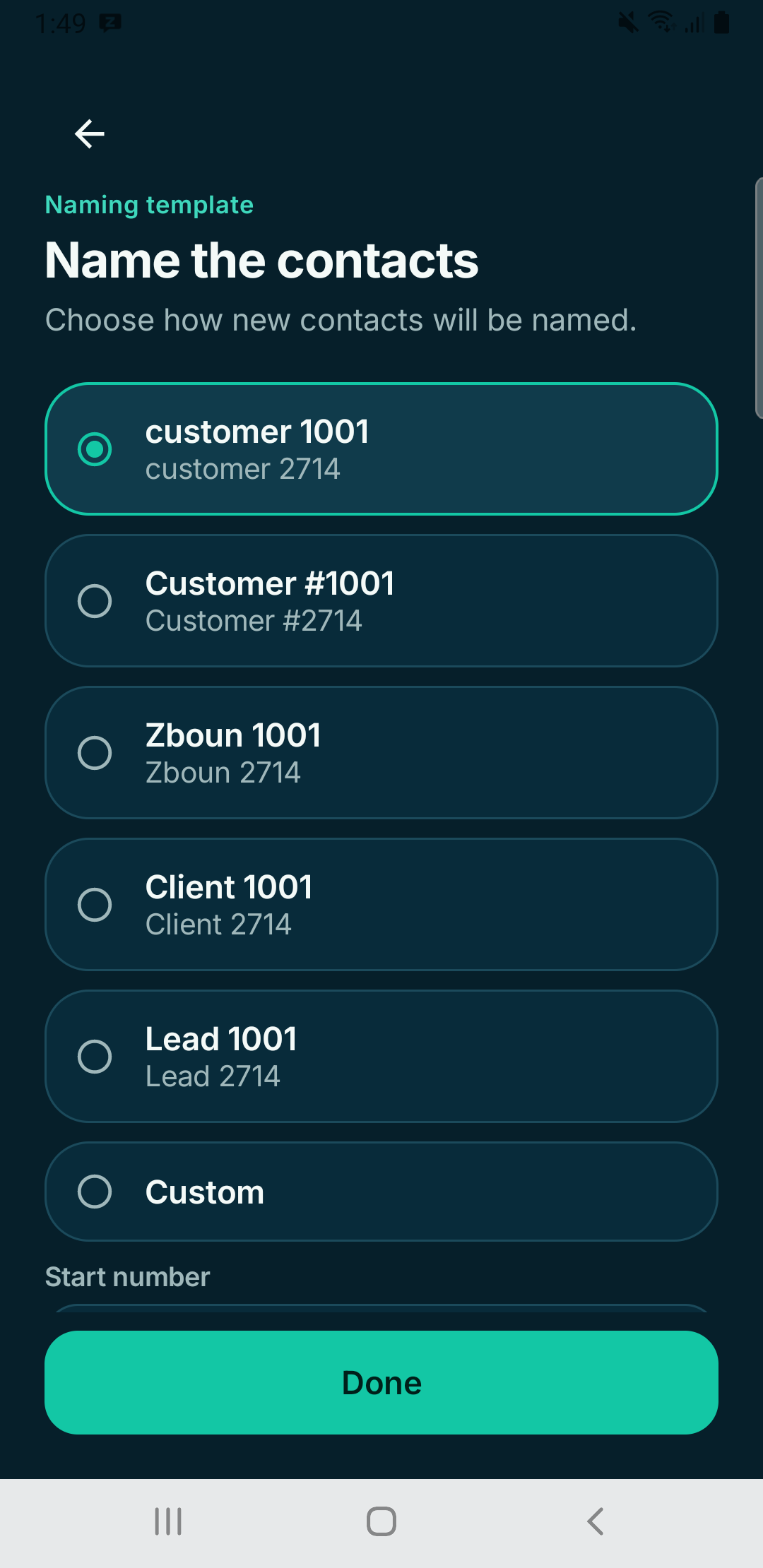
4. Set a naming template
Choose how new contacts are named — customer 1001, Client 1001, Lead 1001, or your own custom prefix and starting number. Each template keeps its own counter, so numbering never collides.
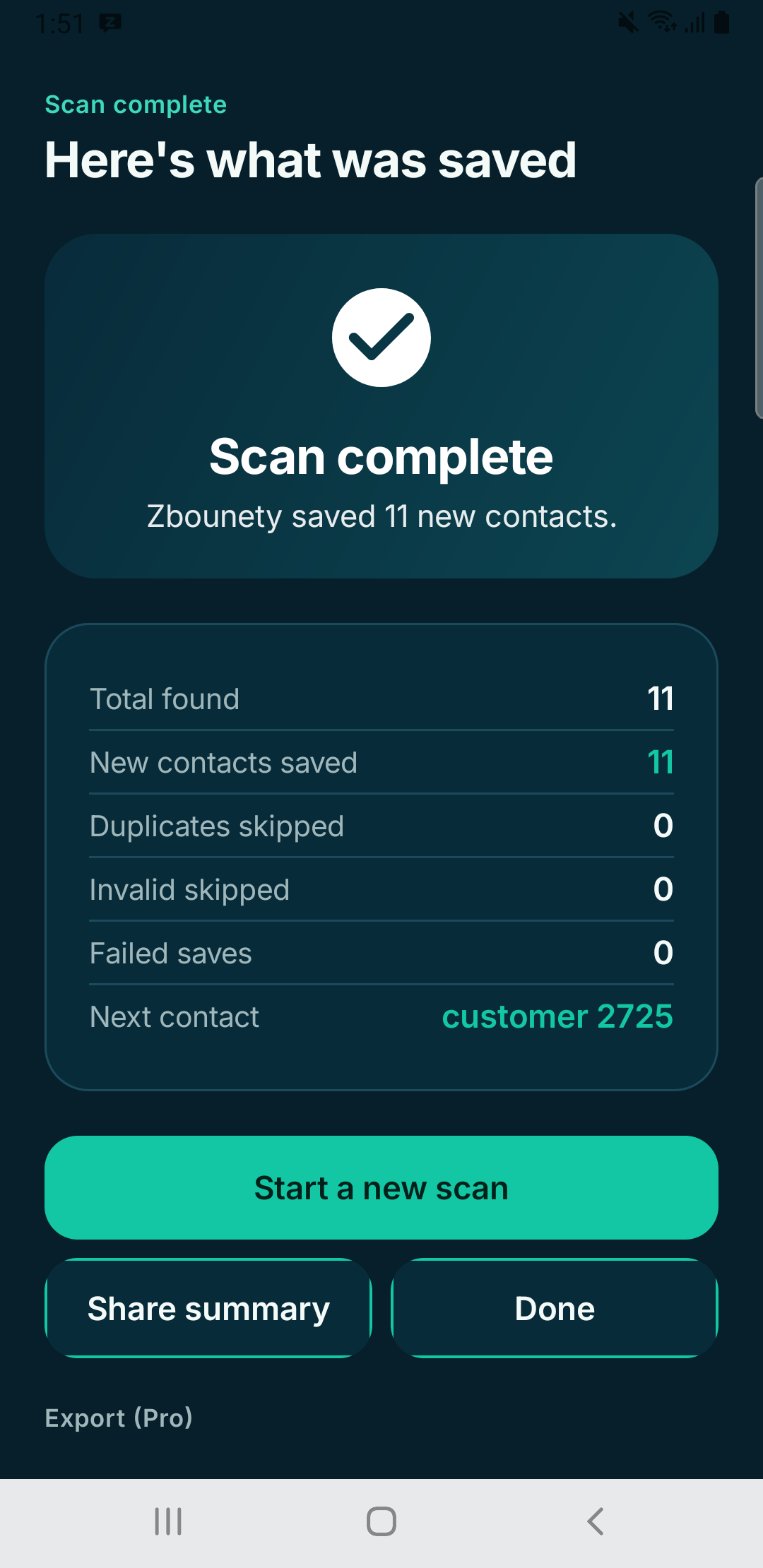
5. Run the scan & review results
Tap Start. Zbounety opens WhatsApp, walks the list, and saves every unsaved number as a contact. When it finishes you get a clear summary: found, saved, duplicates skipped and any that failed.
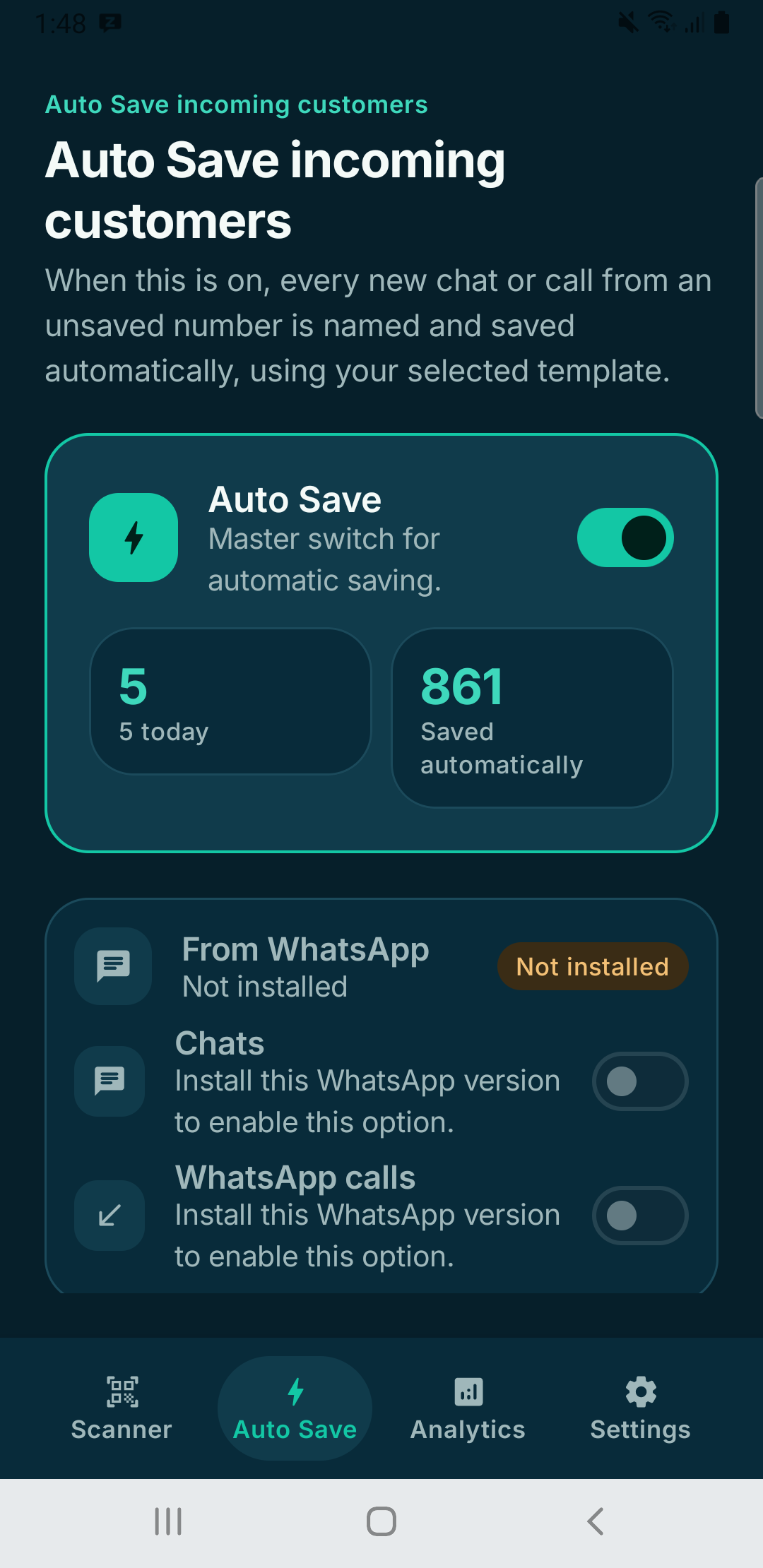
6. Turn on Auto Save
Flip the Auto Save master switch and Zbounety keeps working in the background — every new customer who messages, calls or texts from an unsaved number is named and saved the moment they reach you, with zero taps.
7. Export & back up
From the results screen or Settings, export your saved customers as VCF, CSV or JSON to move them into any CRM, and back up your app data and counters so nothing is ever lost.
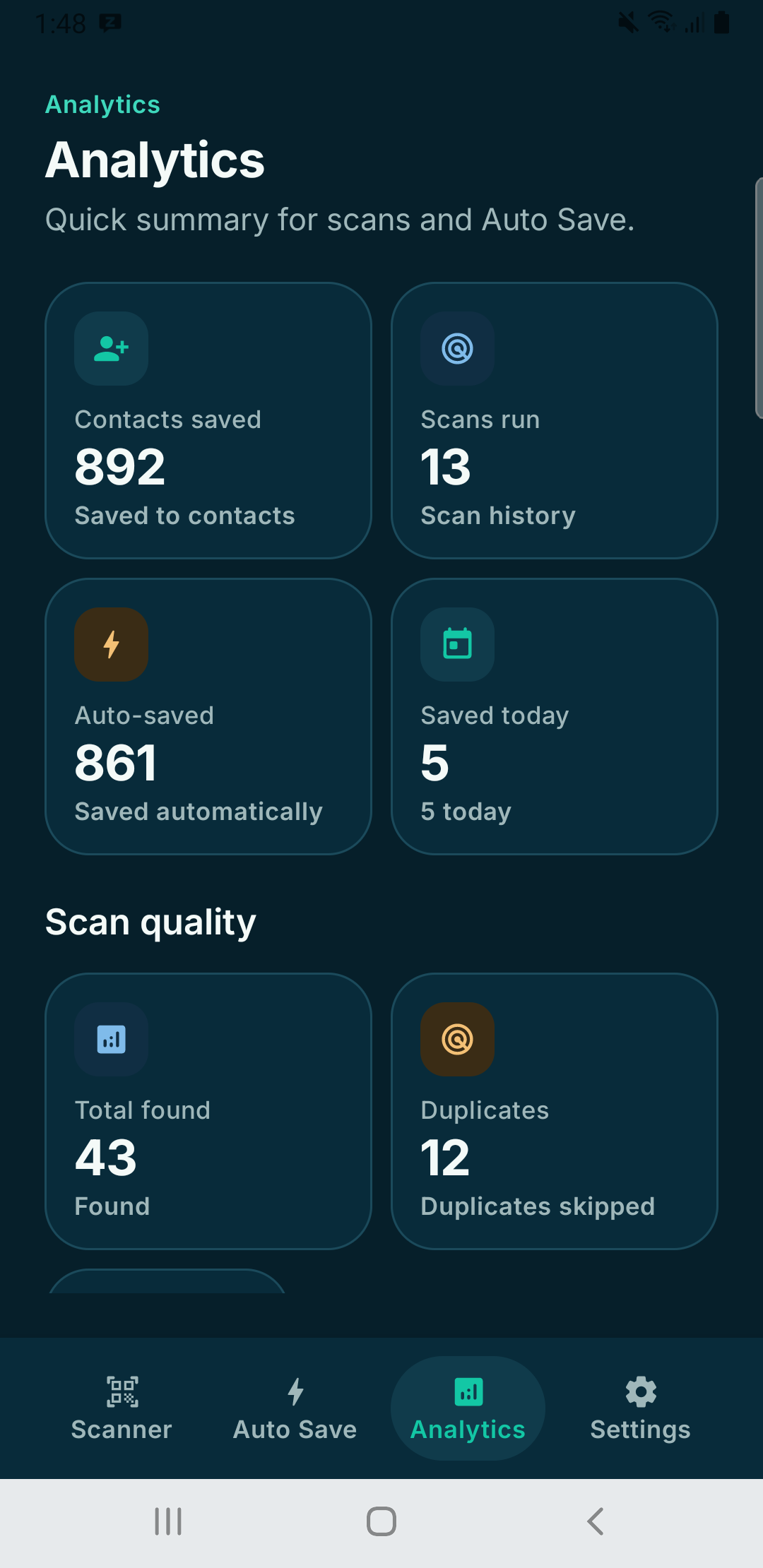
8. Track your stats
The Analytics tab shows contacts saved, scans run, auto-saved totals, saved-today, duplicates skipped and scan quality — so you always know how much Zbounety is doing for you.
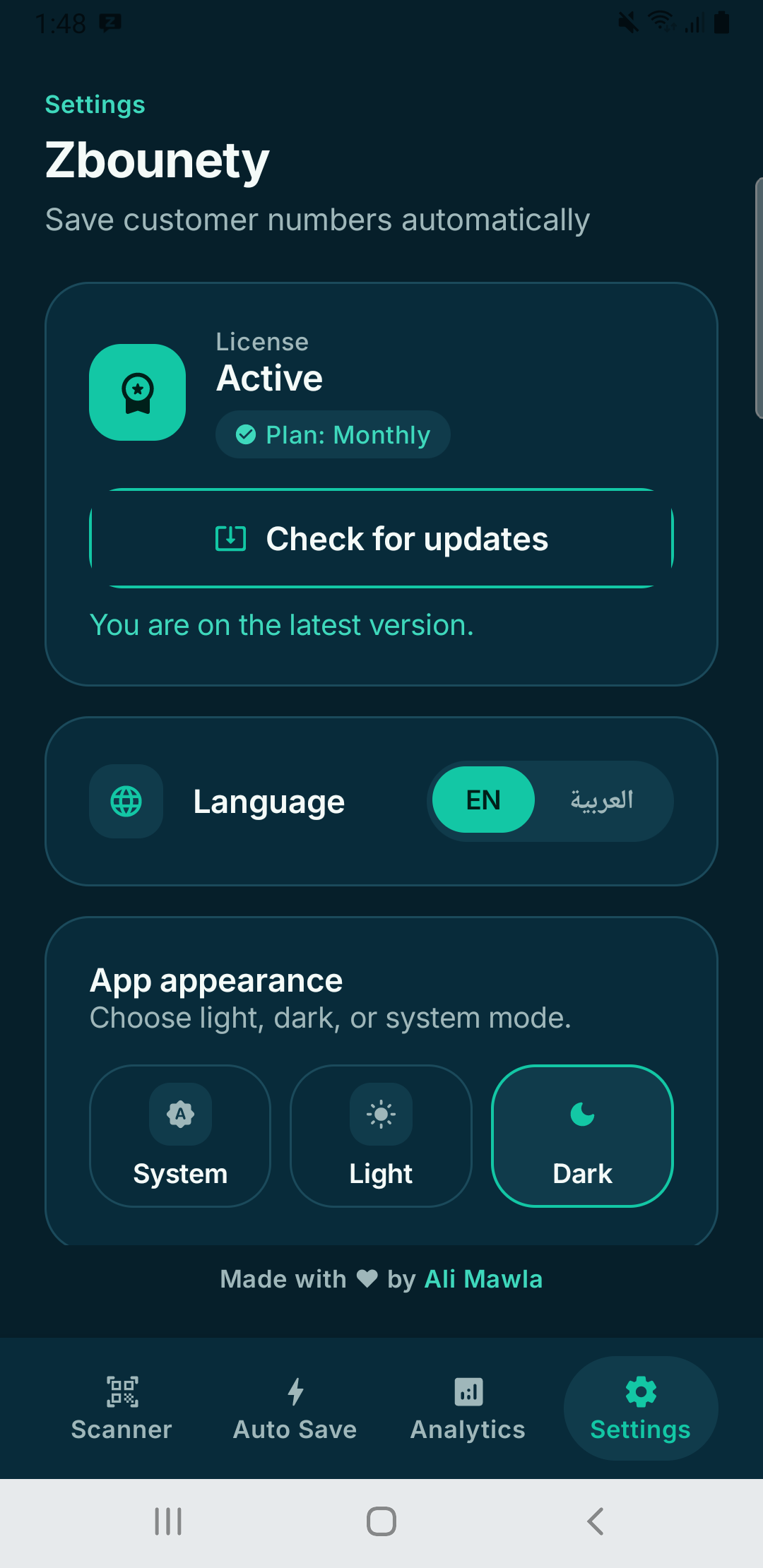
9. Manage everything in Settings
Switch language (English / Arabic), pick light or dark, set your default country, change the contact-save account, review before saving, manage or undo saves, and open the website, guide and terms from Important links.
- Before a big scan, turn on airplane mode so new messages don't interrupt the process.
- Keep the WhatsApp chat list on screen while a scan runs.
- Set your default country in the naming step so local numbers are read correctly.
- Use one naming template per business so your numbering stays tidy.
- Leave Auto Save on so you never have to run a manual scan for new customers again.
Stop losing customers in your chat list
Get Zbounety today and turn every unsaved number into a saved, searchable customer.